
How to choose a restaurant POS
Choose the POS that fits how orders already move through your restaurant, from the counter to the kitchen to the bill, and that shows you the day's numbers without you standing at the till. Before you sign, check seven things: order flow, the bill, the kitchen, stock, staff access, reports, and who sets it up and supports it.
Start with how orders move today
Before you look at any software, write down how an order travels in your restaurant now. Who takes it, where it is written, how the kitchen hears about it, and who closes the bill. A cafe with one counter and a takeaway window works very differently from a restaurant with tables, captains and a separate kitchen.
A good point of sale follows that path instead of asking you to change it. If most of your orders are takeaway, billing should be a few taps. If you serve tables, the system should keep each table's bill open while new rounds are added.
- Dine-in, takeaway or both, from the same counter
- Tables that keep a running bill until the guests leave
- Menu items with sizes and add-ons, if you sell drinks or combos
- Customer details kept with their bills, for regulars
Check the bill: GST and payments
In India the bill is also a tax document. Once you enter your GSTIN, the POS should add GST correctly and print the GSTIN on every bill, and it should handle menu prices that already include GST as well as prices where GST is added on top.
Then look at how people pay you. Counters in India take UPI, cash and card every day, and groups often want to split one bill across more than one mode. Ask whether a regular can pay later, and how that amount is tracked until it is settled.
Get orders to the kitchen cleanly
A kitchen order ticket, or KOT, tells the kitchen what to cook for which table. Some kitchens like paper tickets from a thermal printer; others prefer a kitchen display, a screen where orders appear and cooks mark each dish as started and ready.
If your kitchen has more than one section, such as a tandoor, a main line and a beverage counter, check that the POS can split the kitchen into stations so each one sees or prints only its own dishes. Ask which printers it works with, and how they connect, before you buy any hardware.
Know what is in the store room
Billing tells you what sold; stock tells you what you can still sell. Look for stock on hand for every item, a minimum for each item with a clear list of what has fallen below it, and purchases from suppliers recorded with what you owe them.
The most useful setups take ingredients off stock by recipe as dishes are sold, so the stock count follows the bills without anyone counting by hand every night. Ask how corrections are kept: a good system adds a correction as a new entry instead of erasing the old figure.
Decide who can do what
Every person who uses the POS should sign in with their own login, and you should be able to choose what each role can do. A cashier needs billing; a cook needs the kitchen screen; only you may need to see money, purchases or settings.
Separate logins also tell you who did what, which matters the first time a bill is changed or cancelled and you want to know why.
See the day without standing at the till
Owners are rarely at the counter all day. Check that you can see sales, bills and top sellers for today or any date range from your phone, and that the numbers match what the counter shows.
Ask what you can export, too. Stock and purchase lists as spreadsheet files make it easy to share figures with your accountant.
Ask the practical questions
The last checks are about living with the system day to day. Ask them in the demo, with your own menu in front of you, and ask to see each answer on the screen rather than on a slide.
- Which devices does it run on, and can you use tablets and phones you already have?
- Which printers does it work with, and how are they connected?
- What happens at the counter if the internet connection drops?
- Who sets it up, who trains your staff, and who answers when something goes wrong?
- Can you export your data if you ever need it elsewhere?
Where Habytet POS fits
Habytet POS is restaurant and cafe billing software from Habytet. It runs on an Android tablet at the counter, bills dine-in and takeaway, adds GST to each bill, takes UPI, cash, card and online payments with split bills, and sends orders to a kitchen display or prints kitchen tickets on a network thermal printer.
Stock, purchases and staff roles sit on the same system, and sales and top sellers are on your phone. Habytet Inventory adds stock that goes down by recipe as dishes are sold. One team sets it up around the way your restaurant already runs and supports it after that.
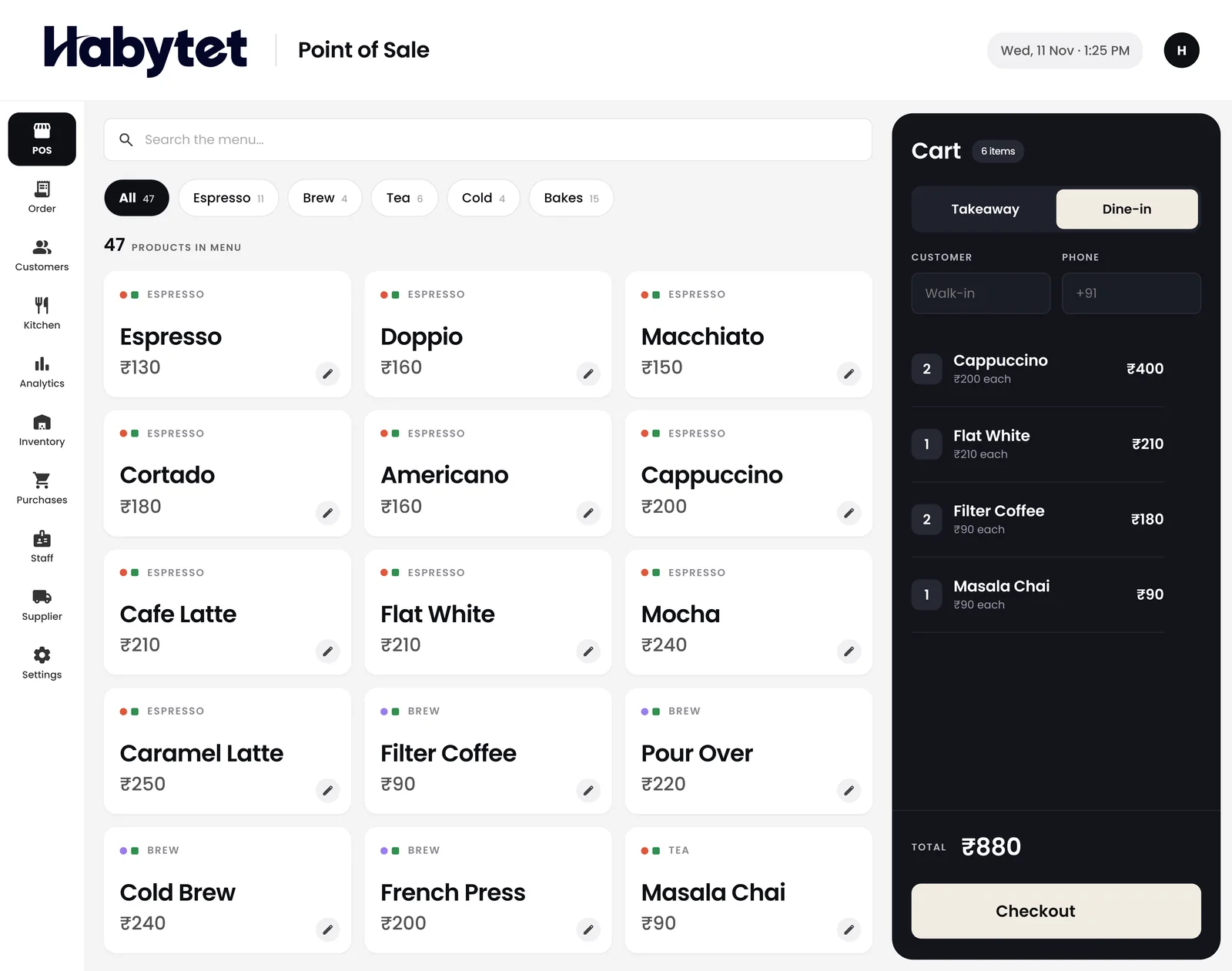
Habytet products in this guide
- Habytet POSHabytet POS is point of sale software for restaurants and cafes: billing, orders, the kitchen and stock on one system.
- Habytet InventoryHabytet Inventory keeps stock levels for every item, low-stock alerts, purchases and suppliers, on the same system as Habytet POS.
- Habytet QueueHabytet Queue is restaurant queue and token management: tokens at the podium, QR self-registration, a live waiting list, a now serving display board, table seating and queue reports.
Questions.
What is a restaurant POS?
A restaurant POS, or point of sale, is the system the counter uses to take orders and make bills. Most also send orders to the kitchen, record payments, keep stock and show sales reports.
What is a KOT?
A KOT, or kitchen order ticket, is the slip that tells the kitchen what to cook for an order. It can be printed on a thermal printer or shown on a kitchen display screen.
Do I need a kitchen display or a kitchen printer?
Either works. Paper tickets suit a small kitchen with one cook; a kitchen display suits a busier kitchen where cooks mark dishes as started and ready and the counter can see what is done. Some kitchens use both.
What should a restaurant bill in India show?
A GST bill should show your business name and GSTIN, the items with their prices, the GST charged and the total. Check the current GST rules for your business with your accountant.
Does Habytet POS run on Android?
Yes. Habytet POS runs on an Android tablet at the counter, and sales and reports can also be checked in a web browser on your phone.
See it running in your own business.
Tell us about your business and we will call you to set up a demo.
Thanks.
We will call you on .